

Worktrees
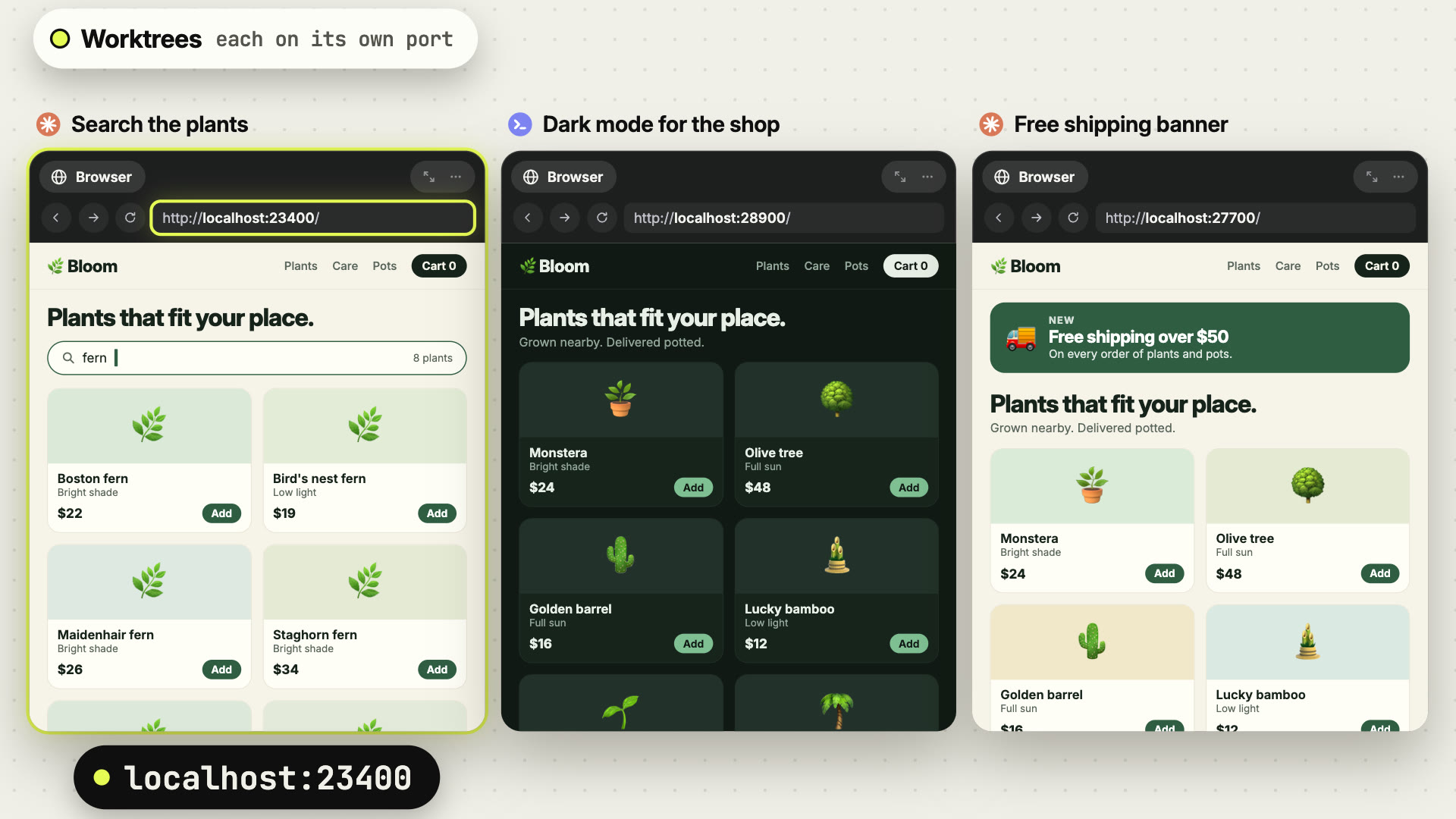
A worktree is a second checkout of your repository with its own branch and its own folder. In Offsite it also gets its own board, its own agents and its own ports, so two agents on two tasks keep out of each other’s files and ports.
You work in the main checkout of a repository by default, one task after another. Worktrees come in when you want several agents on the same repository at once. The Worktrees column appears with the repository’s first worktree.
 1:30
1:30
The Worktrees column
Section titled “The Worktrees column”A repository with worktrees gets a Worktrees column right of its board. Each card shows the worktree’s name, its task in the line below and badges for what matters now:
- the agent: a spinner beside the task while it works, then Needs you, Error or Finished
- git:
dirty 6,unpushed 2,behind base 1,clean,merged - the linked issue or pull request, Issue #42 or PR #12
- the apps: Running, Stopped, Exited with the exit status
- the setup: Copying…, Setup 2/4…, Setup done, Setup failed
A card offers one action when its state calls for one, such as Run setup again after a failed setup or Delete worktree once the branch is merged. Everything else is in its … menu: Open, Copy branch name, Open branch on GitHub, Copy path, Worktree setup… and Delete worktree….
The sort button next to + orders the cards by Created, Activity, State, Name or Issue or PR. The button left of the title folds the column into a narrow rail of mini cards.
Worktrees made outside Offsite, in a terminal, in GitHub Desktop or by an agent’s own command, appear in the column as External worktree. One click adds them to the workspace. See Worktrees made elsewhere.
A board of its own
Section titled “A board of its own”Click a card and the worktree opens as a board over the repository’s board. The repository behind it goes soft, and the column stays sharp so you can switch to another worktree with one click. Click the open card again, the repository behind or × to return to the main checkout.
A new worktree’s board starts with its agent on the left and its Git and Files cards on the right. Both point at the worktree. The board’s own + adds more agents, terminals and browsers, all in the worktree’s folder.
The header above the board names the worktree and carries:
- Setup, with the setup’s terminal and state
- Run, for the app on the worktree’s own port; with several apps, one Run button whose popover lists them
- two tidy buttons: Tidy board: equal grid and Tidy board: one large card left
- Delete worktree
On the keyboard, ⌥⌘R opens the first worktree of the column, ⌥⌘↑ and ⌥⌘↓ switch to
the one above or below, and ⌥⌘B moves the keyboard into its board.
How a task runs through a worktree
Section titled “How a task runs through a worktree”- Create it as a plain branch, from a task, or from a GitHub issue or pull request. An agent can create one for you too.
- The setup runs: Smart Copy brings
node_modules,.envand the rest of what git ignores, the commands install what is missing, then the agent starts on its task. - Run your apps next to the main checkout and the other worktrees, each on its own port, and open them in a Browser card.
- Finish it from the Git card: update from the base, open a pull request or merge.
- Delete it when the work is in the base. Offsite suggests the worktrees you no longer need.
- 1 Create itfrom a task or an issue
- 2 The setup runsthen the agent starts
- 3 Run your appseach on its own port
- 4 Finish ita pull request or a merge
- 5 Delete itonce the work is in the base
For the technique behind it (clones, ports, folders), read How worktrees are built.
Worktree Setup
Section titled “Worktree Setup”The Worktree Setup says what every new worktree of a repository gets before its agent starts. It has three stages, and you can write it yourself or let an agent work it out. The whole page: Worktree Setup.
The main checkout has its own setup with Setup and Run buttons on its board: Repository Setup.
Smart Copy
Section titled “Smart Copy”The paths git ignores that a fresh worktree needs, such as node_modules or .env.
Each one is cloned from the main checkout, or linked when you tag it link.
More on Smart Copy.
Commands
Section titled “Commands”Commands that run in order before the agent starts, for example npm ci.
More on commands.
One entry per app, each started on its own port from the worktree’s window. Run apps side by side.
Clean up
Section titled “Clean up”Commands that run when a worktree is deleted, such as dropping the database it created. More on Clean up.
Branch prefix
Section titled “Branch prefix”New branches are named offsite/<name> unless you change the prefix under Advanced
in the setup. More on the branch prefix.
Finish a worktree
Section titled “Finish a worktree”The worktree’s Git card always shows the next step: commit, publish, update from the base, open a pull request, merge it. Conflicts, failing checks and review comments can go to an agent. Finish and clean up.
Delete a worktree
Section titled “Delete a worktree”Delete worktree in the header, or Delete worktree… in a card’s … menu, shows what would go and removes the folder, the workspace and, when its work is in the base, the branch. Delete a worktree.