

The Browser card
Your agent starts a dev server. It listens on localhost on the host, which
is a machine you may not be sitting at. Normally that is where remote work
stops.
The Browser card forwards that loopback port over the connection you already have and renders the page, on your Mac and on your phone. It is your browser: your cookies, your logins, your session. No agent can see it or touch it.
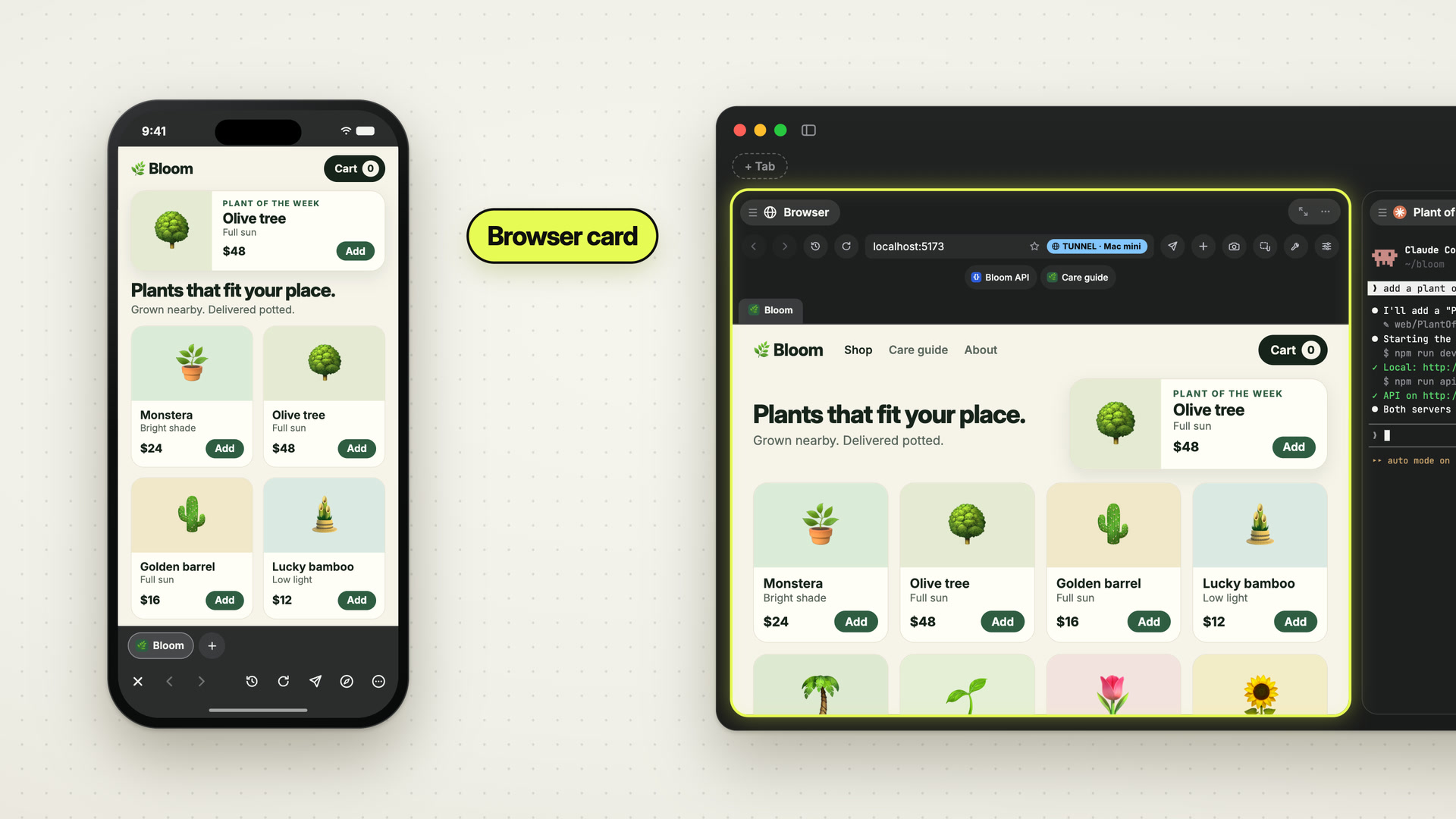 0:53
0:53
Using it
Section titled “Using it”Add a Browser card and it opens straight away, on your workspace’s start page if it has one, else on the last URL you used in a Browser card of that workspace. No dialog, no setup step.
The bar across the top is a real browser bar:
| Control | |
|---|---|
| Back, forward, reload | ⌘[, ⌘], ⌘R — and ⇧⌘R reloads past the cache, for dev servers that serve stale bundles. Esc stops a load |
| History | ⌘Y; ⌘-click an entry to open it in a new tab. Rows carry the site’s icon |
| The address field | type a URL, or type words to search. ⌘L focuses it. The star adds the page to the workspace’s favorites |
| Paper plane | send the page’s link to an agent, into a running session’s prompt or as the first prompt of a new one |
| + | a new tab, on the workspace’s start page if it has one — ⌘T, close with ⌘W, switch with ⌃Tab and ⌃⇧Tab, ⌥⌘→ and ⌥⌘←, or ⇧⌘] and ⇧⌘[ on a US layout; jump with ⌘1 to ⌘8, ⌘9 is the last tab |
| Camera | send the whole page to an agent — ⇧⌘S |
| Marquee | mark an area of the page and send that |
| Wrench | Developer Tools — ⌥⌘I, in their own window |
| Sliders | browser settings: the workspace’s start page, its favorites, your browsing data |
Buttons that do not fit a narrow card move into a … menu. ⌘F opens
find-in-page. Under the bar, the workspace’s favorites stand in a row of their
own once the card is tall enough; in a lower card they are a button in the bar.
⌘-click a favorite to open it in a new tab.
Every host address a tab uses gets a tunnel of its own, so localhost:5173 and
localhost:8787 are open side by side, each in its own tab; tabs on the same
port share one. When a page reaches for a further port of the host, a frontend
calling its API for one, the card asks: Allow, Allow all ports or
Block. The answer holds for that site until you remove it in Host Settings ›
Browser. A page that asks for a permission gets the same kind of question.
On a host that is not this Mac, the address field carries a TUNNEL chip:
localhost is the host’s. Click it to send that origin to this Mac instead
(LOCAL), for a server you run on the Mac itself.
When nothing is answering yet, the card says exactly that and offers a retry, instead of turning into a broken card that stays broken after the server comes up.
Shrink the card and it turns into a launchpad: the current page as a cover with
its title and an address box, then your tabs, the workspace’s favorites, the
servers running in the workspace and recent pages, each with the site’s icon. A
server your agents start lists itself there with the session that runs it
(:5173 node · Claude); a click opens it. Public pages show the preview image
the site publishes for links, the same one messaging apps show; your dev servers
show a live capture of the page instead.
The same card on every device
Section titled “The same card on every device”The card’s tabs, the tab that is open and the address of each tab belong to the host, so every device shows the same card. Open a tab on the Mac and it is on your phone; pick a tab on the phone and the Mac switches to it; follow a link on one and the other loads it. Pick up your phone and keep going where you were at your desk. Each device keeps its own scroll position.
The start page and the favorites belong to the workspace, and they are the same on every device too.
Mark what is wrong, hand it to an agent
Section titled “Mark what is wrong, hand it to an agent”You are looking at the page the agent just built, and something is off. On the Mac, instead of describing where it is:
- Hit the marquee button and drag a rectangle around it, or
⇧⌘Sfor the whole page. - The annotation editor opens: circle things, number them, write one line per number.
- Pick the target session, an intent (fix, change, question or approve) and add a note.
Offsite uploads the marked image to the host and pastes a block into that
session: your notes, the page URL, the CSS selector of the element you marked,
its surrounding HTML, and in a dev build of a React app the component and the
file:line it came from. Plus a line telling the agent how to open the same page
in its own browser.
Nothing is submitted. The text sits in the prompt; you press Enter.
If no agent session is running, the target picker offers to start one.
This one is yours
Section titled “This one is yours”The Browser renders on your device, with your cookies and your logins, and no agent can reach it — not through a tool, not through the CLI, not by asking. Data moves in one direction only: from you to the agent, when you send it.
Your browsing data (cookies, cache, logins) stays on each device. By default the
workspaces of a host share one profile there; give a workspace its own in Host
Settings › Browser, for customer or test accounts, or for a dev app whose
cookies clash with another one on localhost. Logins… in the same place
copies a site’s logins from another profile, and on the Mac from another browser
on it, Safari included.
The Agent Browser is the opposite: one browser on the host that the agent drives, showing the same page on all your devices. One is yours, the other is the agent’s, and you are welcome to watch.
On iPhone and iPad
Section titled “On iPhone and iPad”The card is a browser of its own, with the page running to the top edge and the
controls at the bottom, where your thumb is: the tab strip with +, then
Close, Back, Forward, History, Reload, Send to agent (the page’s link into a
session’s prompt), Open in Safari, and a menu with Add to Favorites and
Browser Settings. Open in Safari takes a localhost page through the same
tunnel.
On the board, the card is its launchpad: the page as a cover, then your tabs, the favorites, the running servers and recent pages. Tap the cover to open the browser.
Details
Section titled “Details”- macOS forwards with
ssh -L; iOS opens adirect-tcpipchannel natively over its own SSH implementation. Both ride the connection the app already has, so nothing new is authenticated, no port is opened on the host, and the dev server stays private to your own devices. There is one tunnel per host address a tab uses. - Forwarding targets the host’s loopback interface, so a server bound to
127.0.0.1is enough. - The macOS card renders in a bundled Chromium (CEF) rather than WKWebView, because third-party sign-in popups do not work reliably in the latter. Screen captures and page JavaScript run through the Chrome DevTools Protocol. The iPhone card is built on WebKit.
- Browsing data lives on each device, never on the host. Tabs, the open tab, favorites and the start page live on the host.
- A new card opens on the workspace’s start page, else the last URL used in a Browser card of that workspace on this device, else the workspace’s newest Browser card, else the Offsite start page.
- Port discovery scans the host’s socket table every few seconds and maps listeners to sessions through the process tree; servers started outside a session are listed for the workspace instead.
- Stale forwards from a previous run are cleaned up when the Mac app launches.