

Troubleshooting
Everything on this page is a symptom we have seen, with the reason behind it and the step that resolves it. It grows with what we find and what you report.
Your agent knows this page. Paste a message into a session and ask why it appeared; the agent finds the entry and walks you through the fix. If a symptom is missing here, send it in with the exact text.
Messages from macOS
Section titled “Messages from macOS”“Support Ending for Intel-based Apps” names Offsite Host Service
Section titled ““Support Ending for Intel-based Apps” names Offsite Host Service”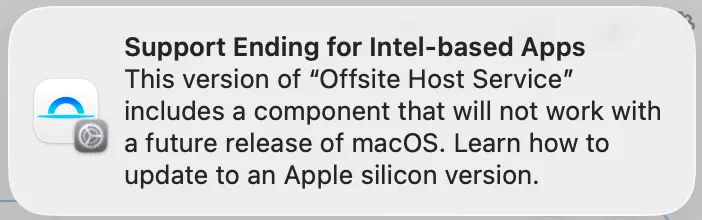
Symptom: macOS Tahoe shows this notification, and the app it names is Offsite Host Service.
Why: Apple is retiring Rosetta, the layer that runs Intel-only programs on Apple silicon. Since macOS Tahoe, the system posts this notice whenever an Intel-only program starts, and it credits the notice to the process responsible for that program. Everything you run inside an Offsite session (a terminal command, an agent, a tool the agent calls) runs under the Offsite Host Service, so when one of those programs is Intel-only, the notice names Offsite. The host service itself is an Apple silicon build.
The usual culprits are tools installed years ago as standalone Intel binaries:
a CLI downloaded from a vendor’s installer, an old Homebrew under
/usr/local, a Node package that shipped a prebuilt Intel binary, a project
toolchain fetched for the wrong architecture.
Fix: find the Intel-only program and replace it with an Apple silicon
build. Package managers ship the right architecture, so brew install … or
npm install -g … over the old copy resolves it. To check a single tool:
file "$(which firebase)"# "Mach-O 64-bit executable x86_64" → Intel-only, runs under Rosetta# "Mach-O universal binary … x86_64 arm64" → fineTo list every Intel-only tool on the paths a session uses:
for f in /usr/local/bin/* ~/.local/bin/*; do [ -x "$f" ] && lipo -archs "$f" 2>/dev/null | grep -qv arm64 && echo "$f"doneThe notice is informational. Until Apple removes Rosetta, the Intel-only tool keeps working exactly as before.
Setup and pairing
Section titled “Setup and pairing”“The host code was already used or has expired”
Section titled ““The host code was already used or has expired””Symptom: you enter a host code and the app answers with this message, or with No host on this network accepted this code.
Why: a host code works once and for about ten minutes. The host replaces it after a device paired with it, when the ten minutes are up, and after a revoke.
Fix: read the current code on the host (offsite-host setup connect shows it
live) and enter it again, or scan a fresh QR from the Mac app (host ⋯ menu →
Show phone QR). See Pairing devices.
“Code not found. Join the host’s network…”
Section titled ““Code not found. Join the host’s network…””Symptom: you type a host code on the iPhone and get Code not found. Join the host’s network (or enable its relay)…
Why: the relay does not know the code, and the iPhone sees no Offsite host on the network it is on. That happens when the host’s relay is off and the iPhone is on another network, or when iOS does not let Offsite look for local devices.
Fix: join the host’s Wi-Fi, or turn on the host’s relay. Check Settings → Privacy & Security → Local Network and allow Offsite. Or scan the QR instead: it carries the host’s address. See Pairing devices.
“Access revoked”
Section titled ““Access revoked””Symptom: the connection pill reads Access revoked, and the app stops connecting to that host.
Why: the host no longer accepts this device’s key. Someone revoked it: from this device, from the host, or with Forget Host… and its revoke tick.
Fix: a paired device pairs again with a fresh code or QR. On a host you added with a password, connect with the password, then choose Authorize this device… in the host’s ⋯ menu. See Device access.
“Check that Remote Login is healthy on the Mac”
Section titled ““Check that Remote Login is healthy on the Mac””This older error text can appear when a connection is rejected during login. On hosts set up with current Offsite versions, Remote Login is not involved. The message usually means your device is not authorised yet: pair it with a fresh QR (host ⋯ menu → Show phone QR) or the current host code.
Sessions
Section titled “Sessions”Only part of the agent’s history is back after a restart
Section titled “Only part of the agent’s history is back after a restart”Symptom: the host restarted (a macOS update, a power cut, a reboot you chose). Every card came back and the agent continues where it was, but when you scroll up in a Claude card, the conversation starts somewhere in the middle. Earlier parts you remember reading are not on the screen any more.
Why: two things are at work, and neither loses anything.
The card’s scrollback belongs to the terminal session on the host. A restart
ends that terminal session, and Offsite creates a fresh one, so the screen
starts empty. Offsite then resumes the conversation with the CLI’s own resume
command (claude --resume for Claude), and the CLI redraws what it holds in
its context window: the summary it wrote at the last compaction and every
message after that. Everything before that compaction is not redrawn. A long
conversation that has been compacted several times therefore comes back
showing only its most recent stretch. Before the restart, those older
messages were still on screen only because the terminal had kept them from
the moment they were first printed.
The agent itself works with exactly the context it had before the restart,
and the complete transcript, including everything before each compaction,
stays on disk. For Claude that is the session’s .jsonl file under
~/.claude/projects/<workspace>/. Offsite also keeps its own archive copy
of that file under ~/.offsite/session-archives/, so a cleanup on the CLI’s
side cannot take it away.
Fix: nothing to repair. Keep working in the card as before. To read an older part of the conversation, open the transcript file named above, or ask the agent in that card: it can read its own transcript and quote the part you are after. A card that never compacted comes back with its full history on screen.