How to keep your MacBook awake with the lid closed
Close the lid and your MacBook sleeps, and the build or agent on it stops. Every way to keep it awake: settings, caffeinate, pmset, clamshell mode and apps.
You start a long build, a large download or an agent task, close the lid and take the MacBook with you. Apple lists closing the display as one of the ways to put a Mac laptop to sleep, so that is what happens. The work is still there when you open the lid again, but nothing moved forward in between, and whatever connects to the Mac over the network gets no answer until it wakes.
A Mac goes to sleep for two different reasons. Idle sleep comes from a timer when nobody uses the Mac. Lid sleep comes from closing the lid. The Energy setting and caffeinate handle the first; clamshell mode and pmset disablesleep handle the second. This guide goes through every common way, says which kind of sleep each one stops, and ends with the safety rules that apply to all of them.
Energy settings: no idle sleep on power
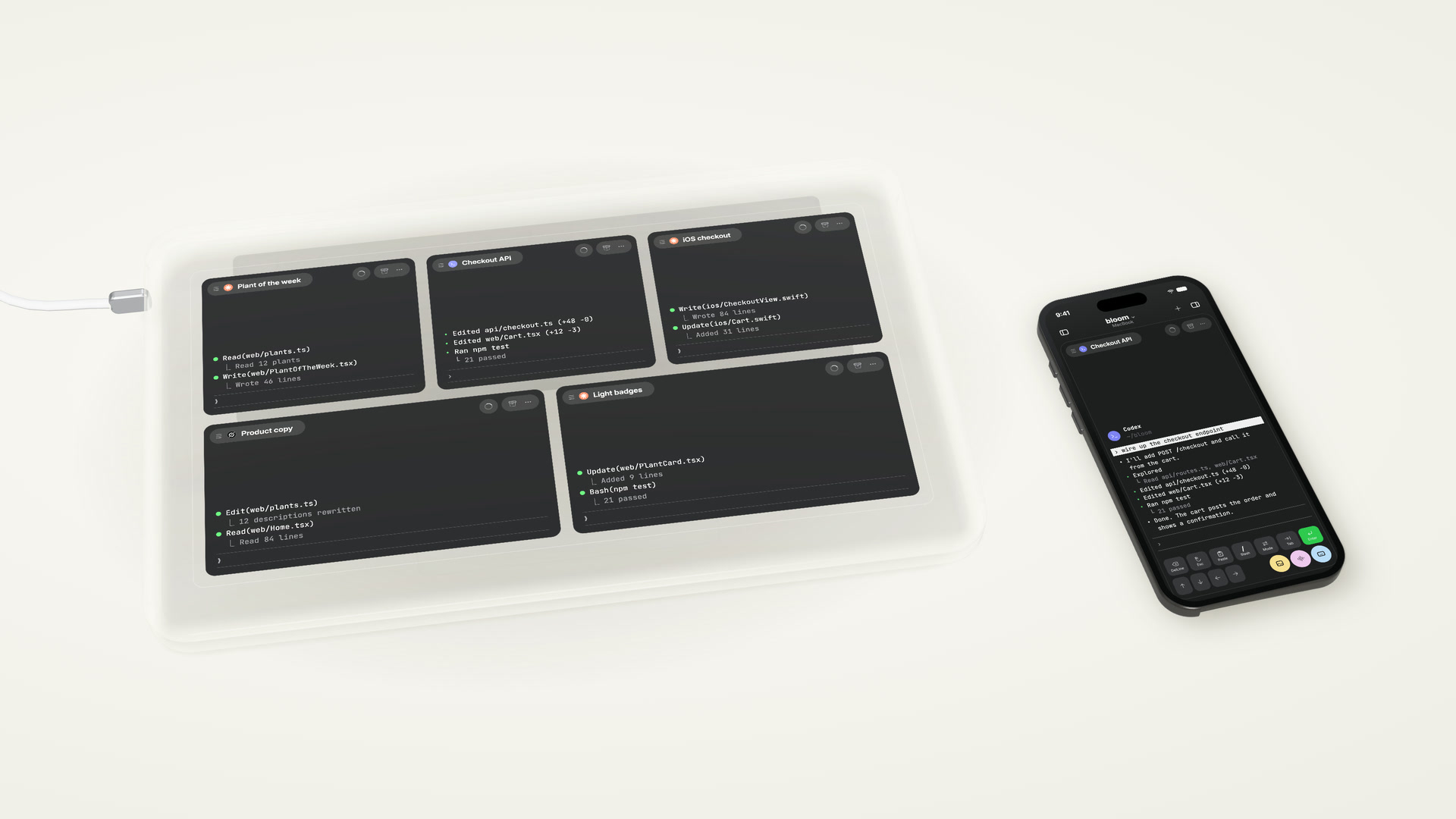
On a Mac laptop, open System Settings, click Battery, then Options, and turn on Prevent automatic sleeping on power adapter when the display is off. Apple lists it in Set sleep and wake settings for your Mac, and the label says what it does: no automatic sleep while the Mac is plugged in and the display is off. On a desktop Mac the switch sits under Energy, as Prevent automatic sleeping when the display is off.
When the display turns off is set separately, under Lock Screen, with one timer for battery and one for the power adapter.
This covers idle sleep on power. It is the right setting for a MacBook that stays open on your desk overnight. The label speaks of a display that is off, and closing the lid is a separate way to put the Mac to sleep.
caffeinate: keep the Mac awake from Terminal
Every Mac ships with caffeinate. In the words of man caffeinate, it “creates assertions to alter system sleep behavior”: while it runs, macOS holds off the kinds of sleep you asked it to.
caffeinate -i -t 7200      # no idle sleep for the next two hours
caffeinate -i make         # no idle sleep for as long as make runs
caffeinate -s -w 4242      # no system sleep until process 4242 exits
The flags, from the man page: -i prevents idle sleep, -d keeps the display on, -s prevents system sleep and “is valid only when system is running on AC power”, -t sets a timeout in seconds, and -w waits for a process ID. pmset -g assertions lists every assertion currently held, so you can check what is keeping a Mac awake.
caffeinate keeps an open Mac working. The README of KeepingYouAwake, a menu bar app built on caffeinate, says it “will only prevent sleep on desktop Macs and portable Macs with an open lid.”
pmset disablesleep: the switch for a closed lid
pmset changes the Mac’s power management settings, and it needs root for every change (man pmset). One setting, disablesleep, turns sleep off, and on power that includes the sleep closing the lid triggers:
sudo pmset -a disablesleep 1    # sleep off
sudo pmset -a disablesleep 0    # sleep back to normal
pmset -g                        # shows "SleepDisabled 1" while it is on
disablesleep does not appear in man pmset; you see it at the top of pmset -g, under “System-wide power settings”, as SleepDisabled. The command takes no duration, so it stays on until you set it back to 0, also when the Mac goes into your bag.
On power, a MacBook with sleep disabled keeps running with the lid closed. On battery, macOS still has the last word, and how long a closed MacBook keeps going depends on the Mac. For anything that has to finish, plug it in.
Clamshell mode with an external display
With an external display, Apple supports working with the lid closed, the setup known as clamshell mode. Connect a display, and you can close the lid and keep using the Mac with the display and your accessories, as the MacBook Pro user guide describes. If the display stays dark, Apple’s troubleshooting page says to make sure the Mac is connected to power and uses an external keyboard and mouse.
For a desk, this setup needs no Terminal command and leaves nothing to undo. It needs the display, the power adapter and the keyboard to stay connected, so it ends when you pick up the MacBook and leave.
Apps that keep your Mac awake
Two free apps, one from the App Store and one open source.
Amphetamine is free on the Mac App Store. Its listing names keeping “your MacBook awake while its display/lid is closed” among its features, along with triggers that start a session on their own and an option to end a session when the battery runs low.
KeepingYouAwake is open source under the MIT licence and puts caffeinate behind a menu bar icon. Install it with brew install --cask keepingyouawake. As its README says, it covers Macs with an open lid.
The half-open lid
You have seen it on café tables: a MacBook with the lid open a finger’s width. As long as the Mac does not register the lid as closed, it behaves like an open Mac, and the settings above apply.
It works until someone bumps the table. The display may also stay on, depending on your Lock Screen timers. It is a trick for ten minutes.
Keep your Mac awake from your iPhone with Offsite
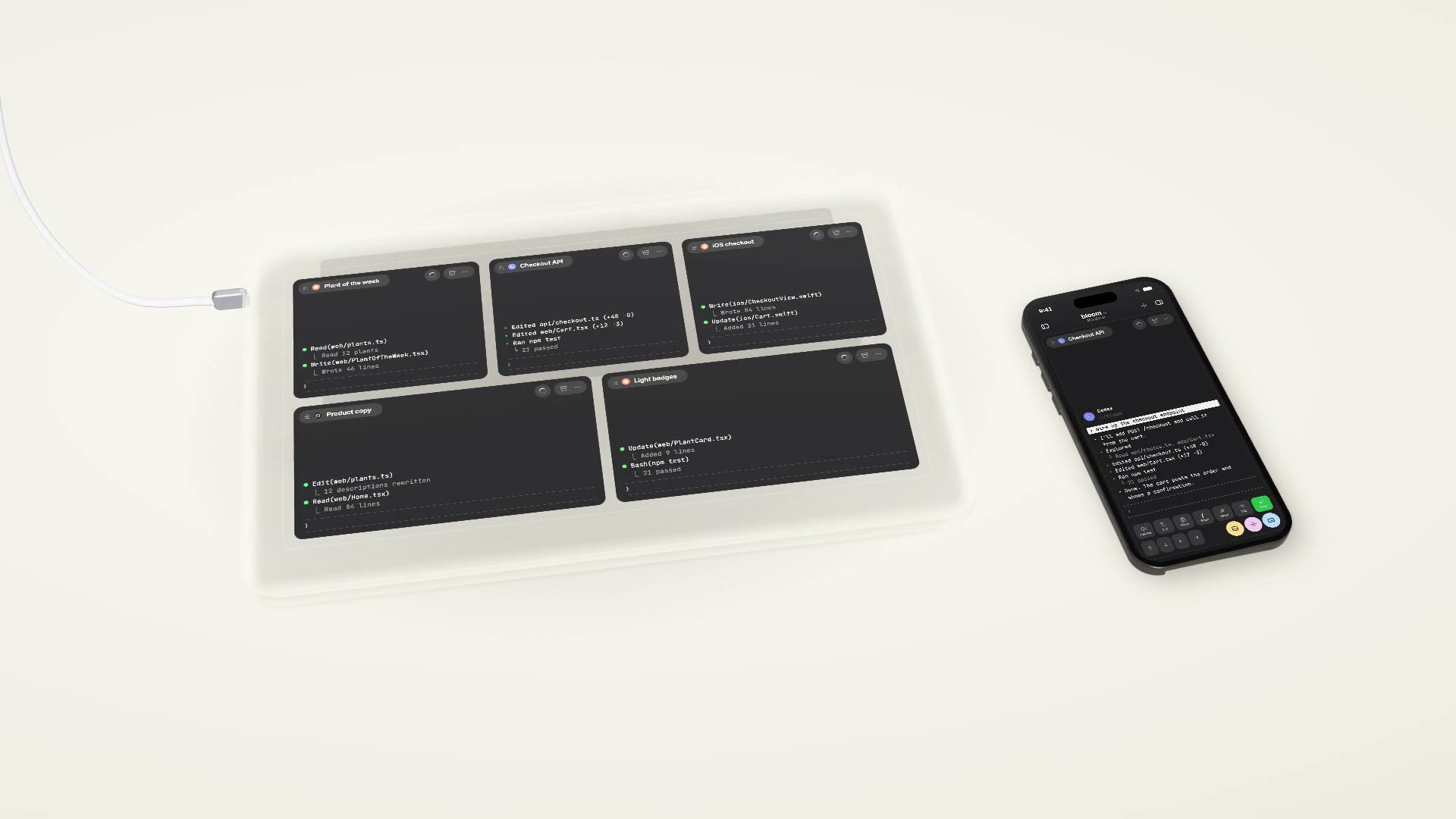
Offsite runs Claude Code, Codex, Grok and your shell as sessions on your own Mac or Linux machine, the host, and shows them on your Mac and iPhone. A MacBook that goes to sleep takes your agents with it, so Offsite has a control for it.
Every Mac host has a bolt on its row in the host list, on the Mac and on the iPhone. Click or tap it, choose Disable host sleep and pick how long: 15 minutes, 30 minutes, 1, 3, 6 or 12 hours, or Unlimited. A timed window ends on its own, and the Mac returns to its normal power behaviour. Allow host sleep hands control back at once. On the Mac, the bolt shows the minutes left.
 0:50
0:50Under the hood it is the same pmset -a disablesleep, set through a small privileged helper that Offsite installs when you set up the host, so the app never runs sudo pmset itself. The same rule applies: on power, the host keeps running with the lid closed; on battery, macOS decides. The dialog reminds you to keep the Mac ventilated and out of a bag. A Linux host stays up, and the control does not appear there. Keep the host awake has the details.
Safety: heat, bags and a time limit
In the words of Offsite’s dialog: “Heat can build up when the notebook is closed.”
- Give it air. Apple asks you to use a Mac laptop “on a stable work surface that allows for good ventilation”, never in a bed, on a pillow or under bedding, and in a room between 10 and 35 °C (Apple Support).
- Never in a bag. The same dialog asks you not to leave the Mac “in a bag or enclosed space while sleep is disabled”.
- Set a time limit. Use
caffeinate -t, a timed window in Offsite, or a reminder to runsudo pmset -a disablesleep 0. A setting without an end is the one you forget. - Plug it in. On battery, macOS still has the last word on a closed MacBook.
FAQ
Does caffeinate keep a MacBook awake with the lid closed?
caffeinate stops idle sleep, and with -s system sleep while the Mac is on power. KeepingYouAwake, which is built on it, states that it prevents sleep only on desktop Macs and portable Macs with an open lid. For a closed lid, use clamshell mode or pmset disablesleep.
How do I undo pmset disablesleep?
Run sudo pmset -a disablesleep 0. Then check with pmset -g that SleepDisabled no longer reads 1.
Does it work on battery?
Clamshell mode needs the power adapter. With sleep disabled, a MacBook on power keeps running with the lid closed, and on battery macOS still decides. Plug it in for long jobs.
Is it safe to run a MacBook with the lid closed?
Apple documents working with the lid closed on an external display, and asks for a stable surface with good ventilation. Keep the Mac out of bags and off soft surfaces, and put a time limit on anything that turns sleep off.
New posts by email
An email when a new post is out, about Offsite and about working with coding agents.
You confirm your address once, and every email has an unsubscribe link. Sent with Buttondown, see the privacy policy.