Pair a device by code, revoke it from the host menu
A new phone, a Linux server without the Mac app, a password you are tired of typing: in Offsite every device gets its own key for your host, by QR or by a short code, and two clicks take that access back.
Every device that reaches your host has to show that it is yours. Usually that means a password you type again on every new device, or an SSH key you copy around and never remove. Then a phone gets replaced or a laptop sold, and nobody remembers which keys still open the machine.
In Offsite each device gets a key of its own, by QR or by a short code from the host. The host menu shows whether the device you hold is authorised and since when, and two clicks take its access back.
Pair a new device
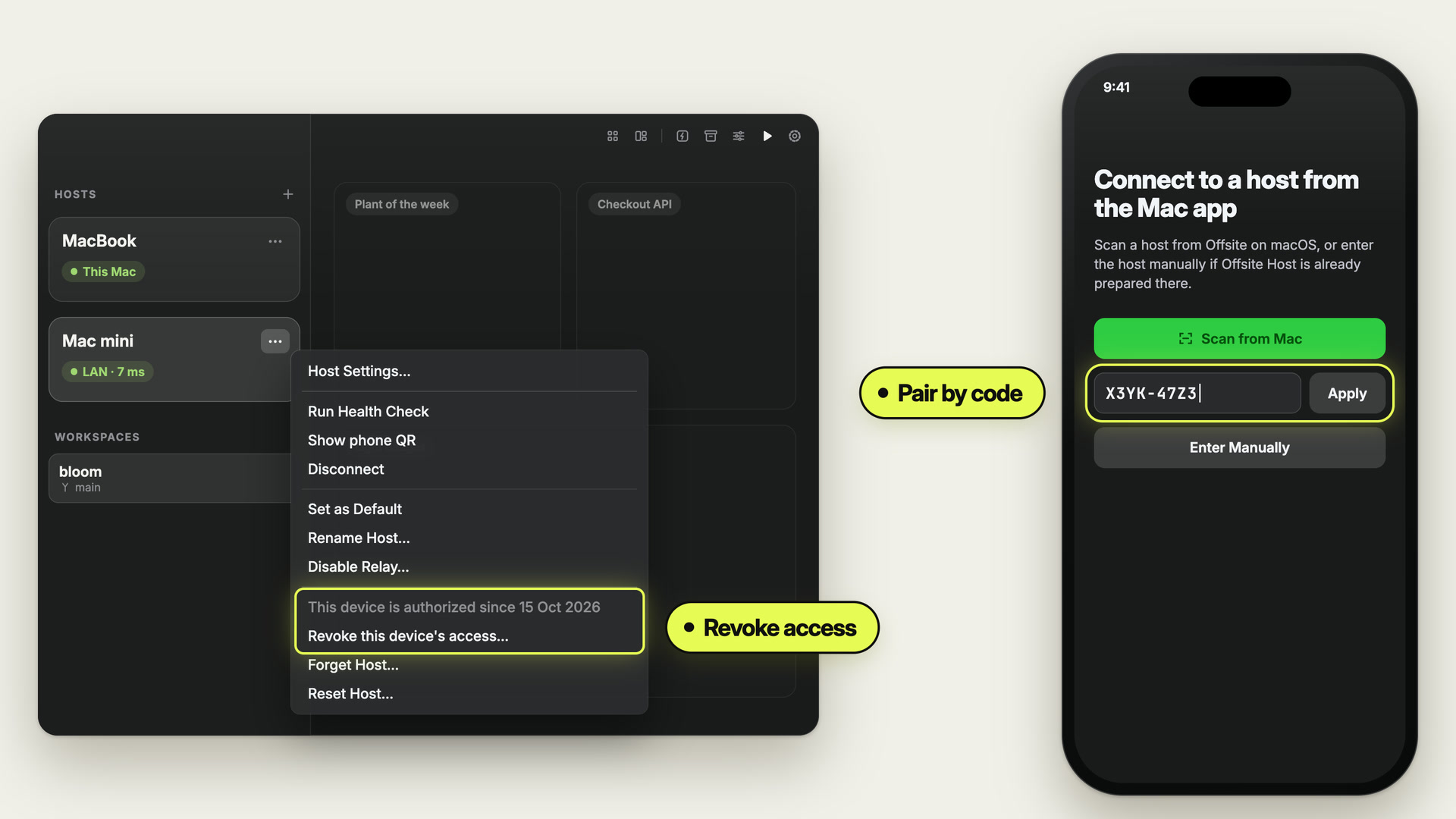
By QR. On the Mac, the host’s ⋯ menu has Show phone QR. Scan it with Scan from Mac in the Offsite app on the iPhone. The pairing screen says what you allow: the iPhone gets a key for the host, and with it Offsite signs in as your user, with the same rights as your login, without a password.
By code. A host without the Mac app, a Linux server for example, has no QR card to show. Run offsite-host setup connect on it, and it prints an eight-character code like X3YK-47Z3. Type it on the iPhone into the code field on the first screen, or under Add Host → Enter Host Code; on the Mac, under Add Host → Connect to Existing Host…. A code pairs one device and holds for about ten minutes, and the host makes a new one after every pairing.
A host you reach with a password. Add it with its address and password, and Offsite connects. Then it asks one question, for a host named Mac mini Authorize this device on Mac mini? With the key, Offsite connects faster, switches networks on its own, reaches the host over the relay when that is on, and stops asking for the password. The password keeps working as before, and Not now keeps the plain SSH connection.
See and take back access
The host menu says where you stand. On the Mac and on the iPhone, every remote host’s menu shows a line like “This device is authorized since 15 Oct 2026” (on the iPhone, “This iPhone is authorized since …”), or that it is not. The menu of This Mac, the Mac that is its own host, shows no authorisation and no revoke.
Revoke in two clicks. Revoke this device’s access… (on the iPhone, Revoke this iPhone’s access…) asks once. The host stops accepting the device’s key, and the device disconnects at once. Your sessions keep running on the host. A device that was paired by code pairs again with a fresh code; with a password you connect as before, and the app offers to authorise the device again.
Forget a host and revoke in one go. Forget Host… offers “Also revoke this device’s access”, already ticked, so removing a host from your Mac also removes your Mac from the host.
A device you no longer have. On the host, offsite-host relay list --json lists every authorised device with its name, how it was paired and when, and offsite-host relay remove --pubkey <key> revokes one. An iPhone revoked this way shows Access revoked instead of trying to connect forever, and so does a Mac whose host has the relay service on.
What a key can do
- It signs in as your user. A device key has the rights of your login on the host, so pair only devices you own.
- On the Mac, it is a file of your user. Programs that run under your user on that Mac can use the Mac’s key too. When a Mac authorises itself after a password or SSH-key login, the screen says so before you agree.
- The private key stays on the device. Every device makes its own Ed25519 key; the host and the relay only ever see the public half.
- Revoking leaves the host’s identity alone. Your devices keep the host key they pinned when you paired.
New posts by email
An email when a new post is out, about Offsite and about working with coding agents.
You confirm your address once, and every email has an unsubscribe link. Sent with Buttondown, see the privacy policy.